How It Works

From right-click to AI-ready brief in three steps

1

Right-click any image

See an image on the web? Right-click it and select "Open in Art Director." It loads instantly into the canvas editor.

2

Mark up your vision

Use annotation tools, reference assets, cinematic presets, and the Director's Brief to describe exactly what you want.

3

Export & Generate

Copy the AI-optimized brief to your clipboard and paste it into any image or video generation model.

Load an Image, Start Directing

Art Director integrates directly into your browser. Load images from any webpage, your clipboard, or local files.

Right-Click Menu

Right-click any image on a webpage and choose "Open in Art Director" to load it directly.

Drag & Drop

Drop images directly onto the canvas. Bulk drop up to 10 images as overlays at once.

Image & Video Mode

Toggle between single-frame Image mode and dual-frame Video mode with start/end keyframes.

Clipboard Paste

Paste images from your clipboard with Ctrl+V to add them as overlays instantly.
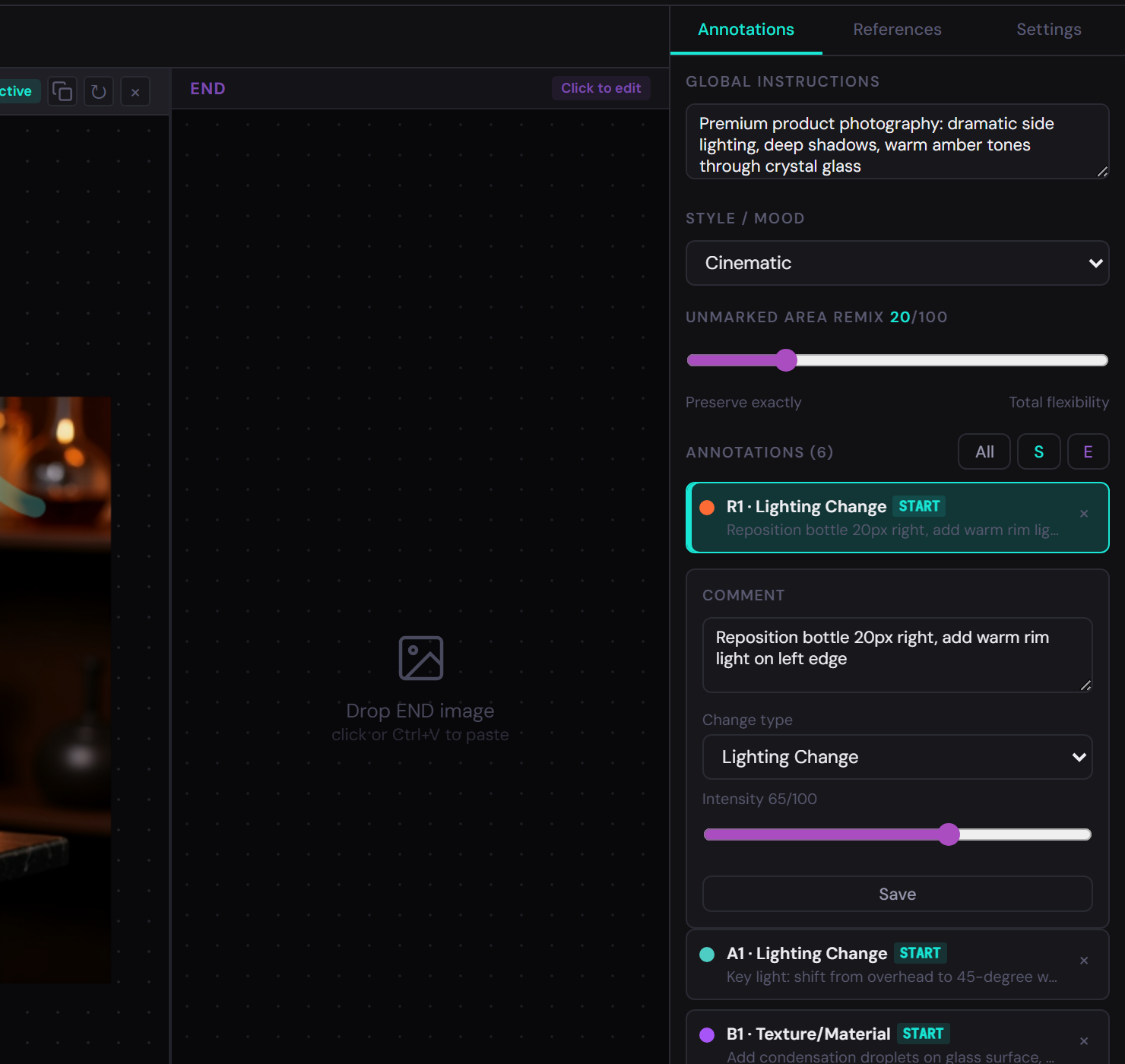
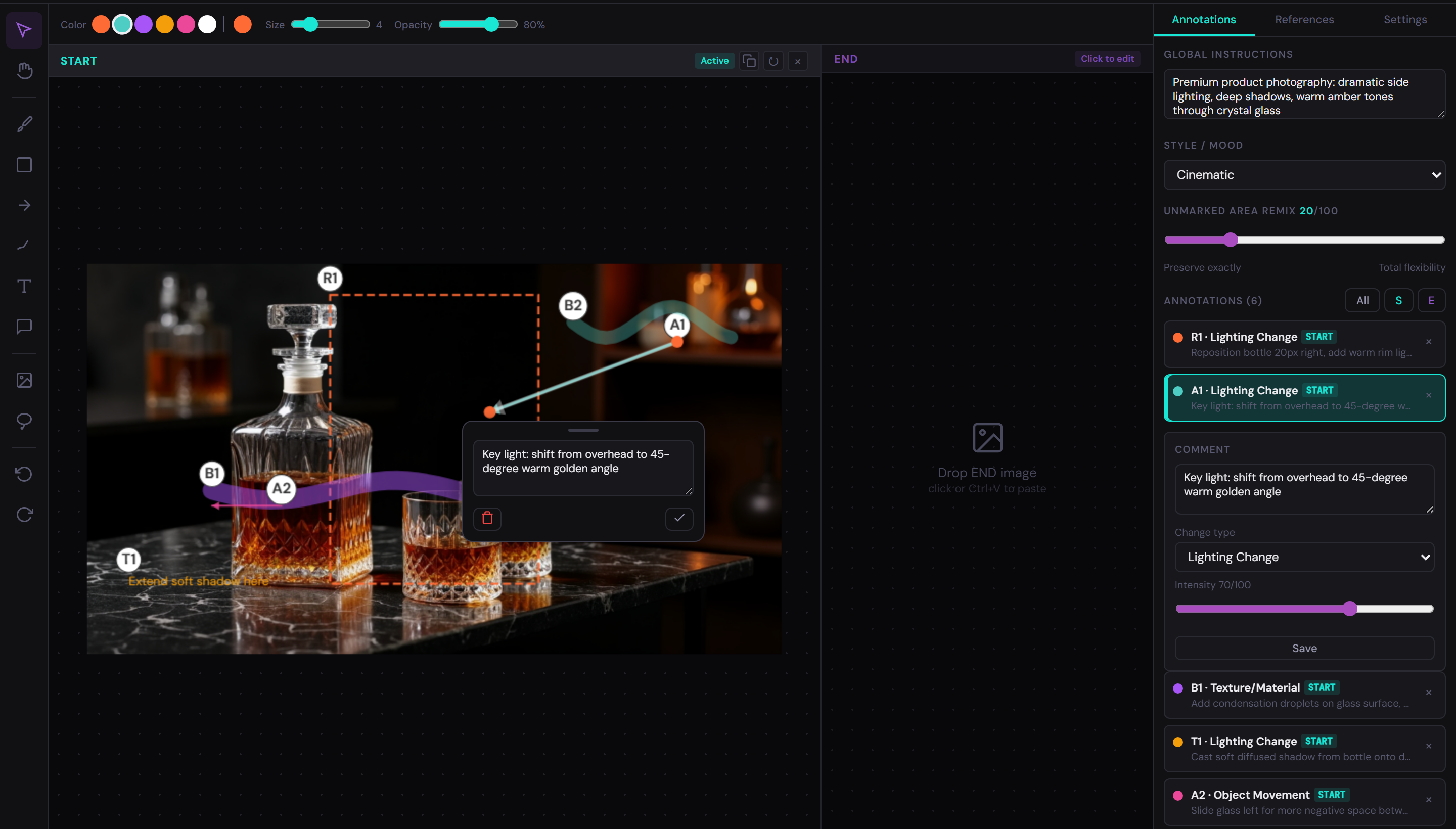
Art Director editor view

Precision Markup for Every Detail

Ten specialized tools let you mark exactly where and how changes should happen. Every annotation is numbered and carries structured metadata.

V Select

Click annotations and overlays to move, resize, or edit properties.

H Pan

Drag to pan the canvas. Also: hold Space and drag.

B Brush

Paint stroked highlights over areas. Adjustable size and opacity.

R Rectangle

Draw filled rectangles to mark regions of interest.

A Arrow

Directional arrows to indicate movement or flow.

D Freehand

Open-ended freehand lines for organic shapes.

T Text

Click to place text annotations on the canvas.

I Add Image

Add an overlay image from a file as a positioned layer.

L Lasso

Freehand selection that copies composited content to clipboard.

C Comment

Add standalone comment markers anywhere on the canvas.

Annotation Metadata

Each annotation carries structured metadata that AI models use to interpret your intent:

Numbered Label

B1, R1, A1, T1, etc. — unique identifiers for precision reference.

Comment

Free-text description of the intended change. Reference assets with $varName.

Change Type

Categorize the edit from 12 types (see below).

Intensity

Strength of the change on a 0–100 scale.

Timing

Video mode: when the change occurs (Start, Mid-point, End, Throughout).

Easing

Video mode: transition curve (Linear, Ease in, Ease out, Ease in-out).

12 Change Types
Object Movement
Lighting Change
Color / Grade
Focus / Depth of Field
Object Addition
Object Removal
Texture / Material
Scale / Proportion
Rotation / Orientation
Style Transfer
Background Change
Expression / Pose
Annotation tools

Visual Context for the AI

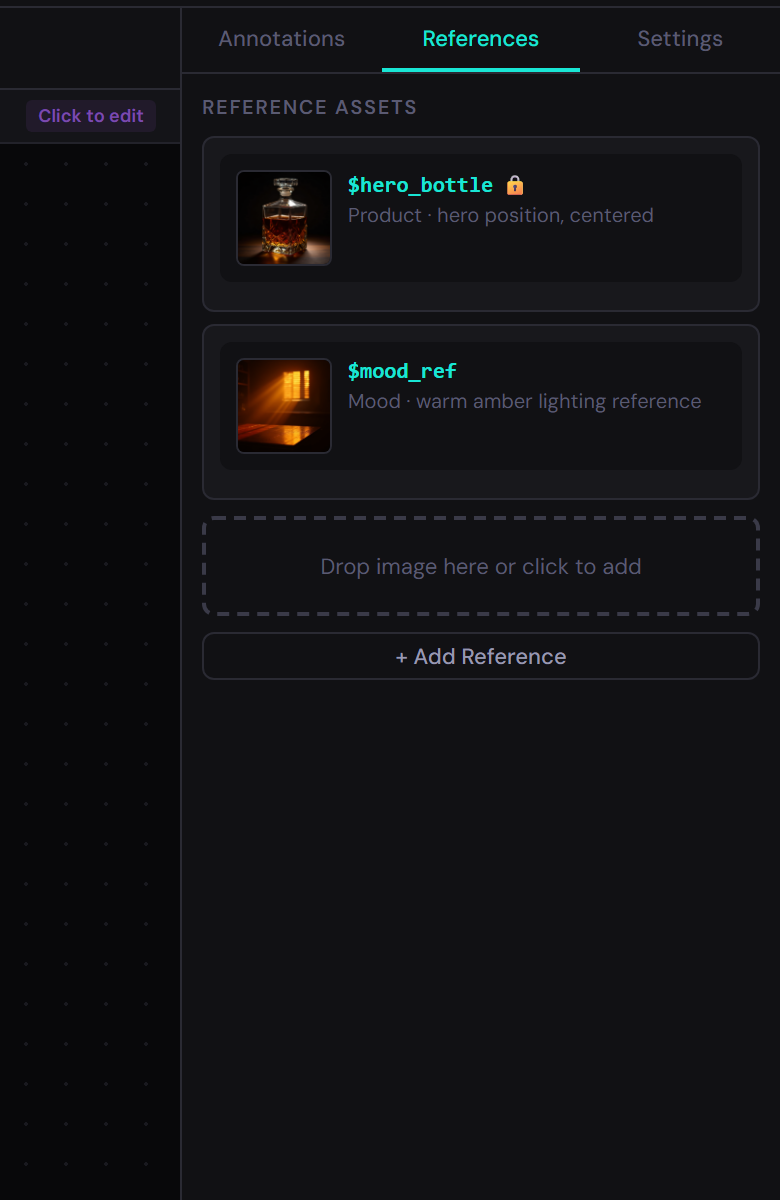
Add reference images with variable names so the AI knows exactly what your annotations are referring to.

Variable Names

Assign names like $hero, $bottle and reference them in annotation comments.

State Descriptions

Describe the current state of each asset (e.g., "jacket off, coffee in left hand") for continuity.

Lock Toggle

Lock a reference's state to export it as a hard constraint the AI must maintain throughout.

Categories

Organize references by type: character, prop, environment, or style.

Reference assets panel

Cinematic Control for Video Mode

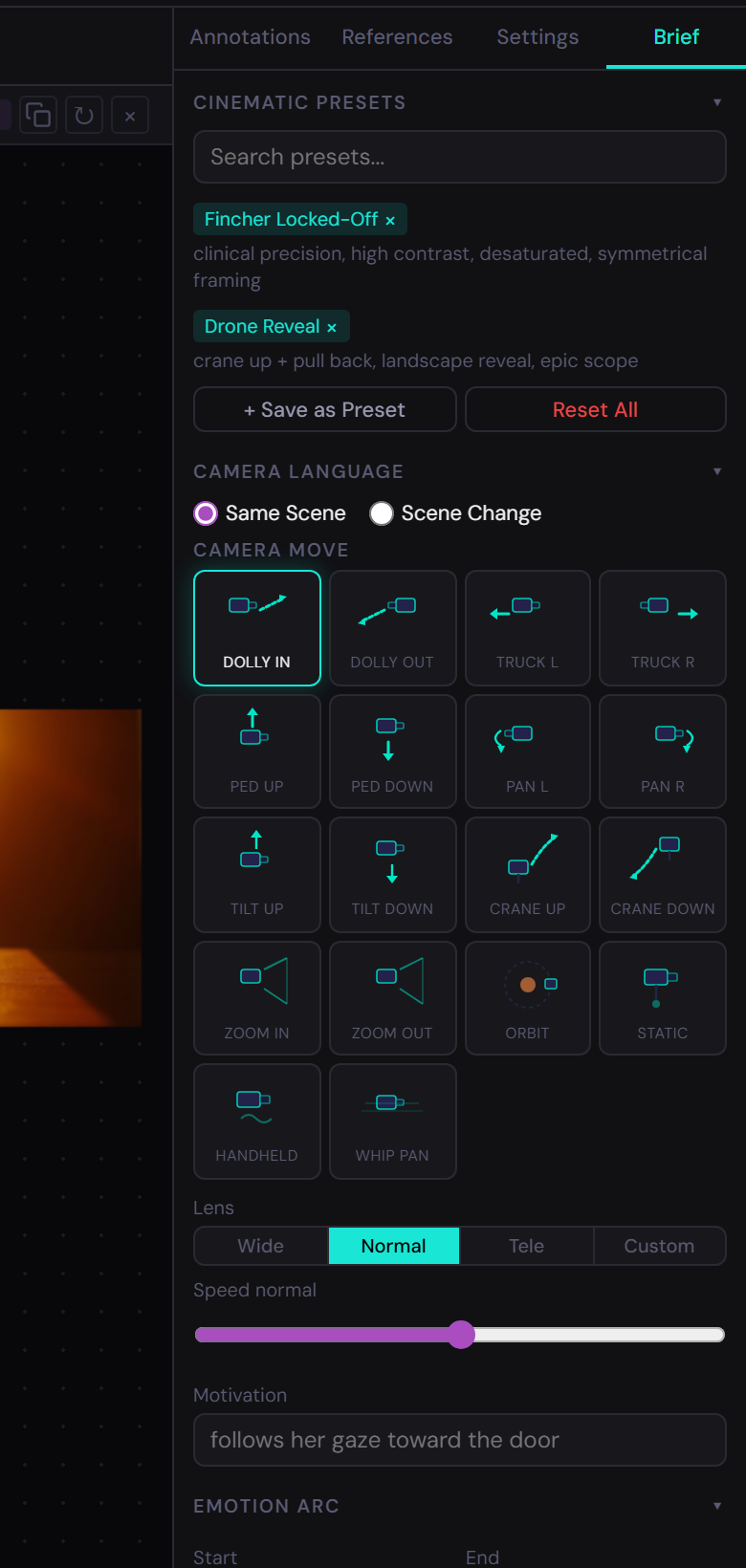
In Video mode, the Director's Brief panel gives AI models the temporal, emotional, and cinematic context they need to produce director-quality output.

Camera Language

Configure camera movement with an animated visual selector. Choose from 18 camera moves, set lens focal length, speed, and motivation.

18 Camera Moves

Dolly in/out, truck left/right, pedestal up/down, pan left/right, tilt up/down, crane up/down, zoom in/out, orbit, static, handheld, whip pan.

Lens Selection

Wide (20mm), Normal (50mm), Telephoto (100mm), or custom focal length.

Speed Control

Scale of 1 (crawl) to 5 (whip) controls the pace of the camera movement.

Motivation

Free text describing the intent: "follows her gaze toward the door."

Scene type toggle lets you choose Same Scene (single camera move) or Scene Change (separate start/end cameras).

Emotion Arc

Define the emotional trajectory of your shot with start and end emotions. The system auto-generates visual transition descriptions.

15 emotions:

Tension Calm Joy Dread Wonder Melancholy Urgency Intimacy Isolation Power Vulnerability Chaos Serenity Anticipation Relief

Each emotion maps to visual parameters — framing, lighting, palette, and movement — that are automatically included in the export as hints for the AI model.

Enable the Override toggle to replace auto-generated text with your own description.

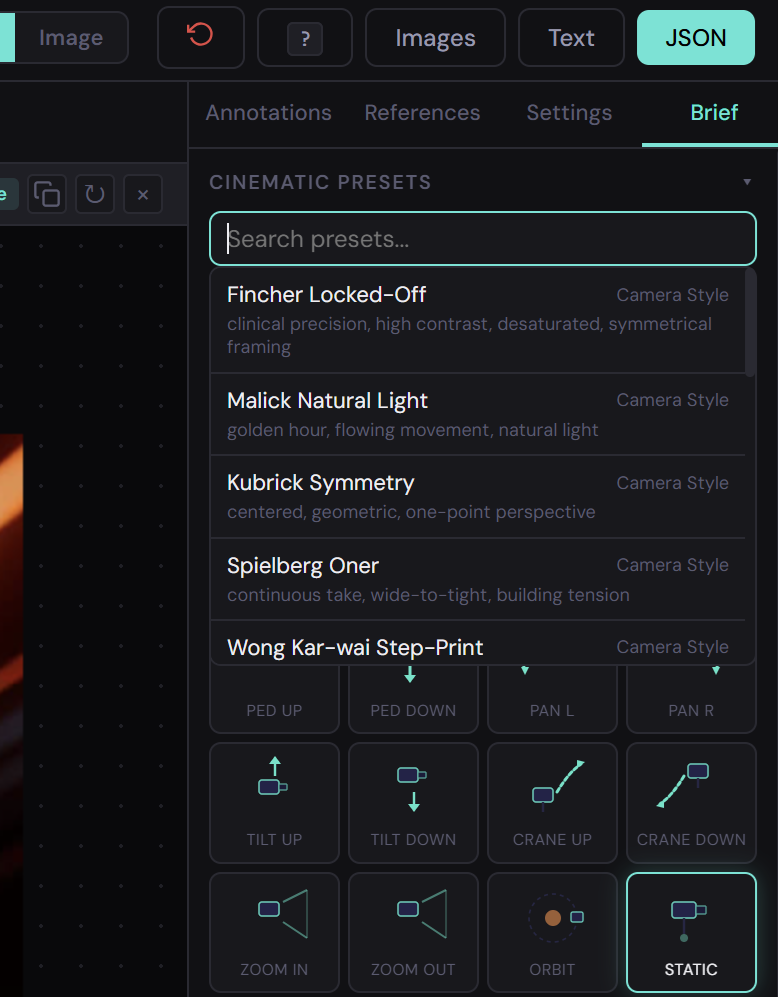
Cinematic Presets

17 built-in presets let you apply a full cinematic language with one click. Each preset auto-populates camera, lens, speed, and emotion settings.

Camera Style

Fincher Locked-Off Malick Natural Light Kubrick Symmetry Spielberg Oner Wong Kar-wai Step-Print Wes Anderson Tableau

Mood / Atmosphere

Film Noir Sundrenched Nostalgia Cyberpunk Neon Horror Tension Documentary Verité Dreamlike

Transitions / Movements

Hitchcock Zoom Steadicam Follow Drone Reveal Snap Zoom Slow Dolly Reveal

Save your current configuration as a custom preset for reuse across sessions. Use Reset All to return to defaults.

Director's Brief panel

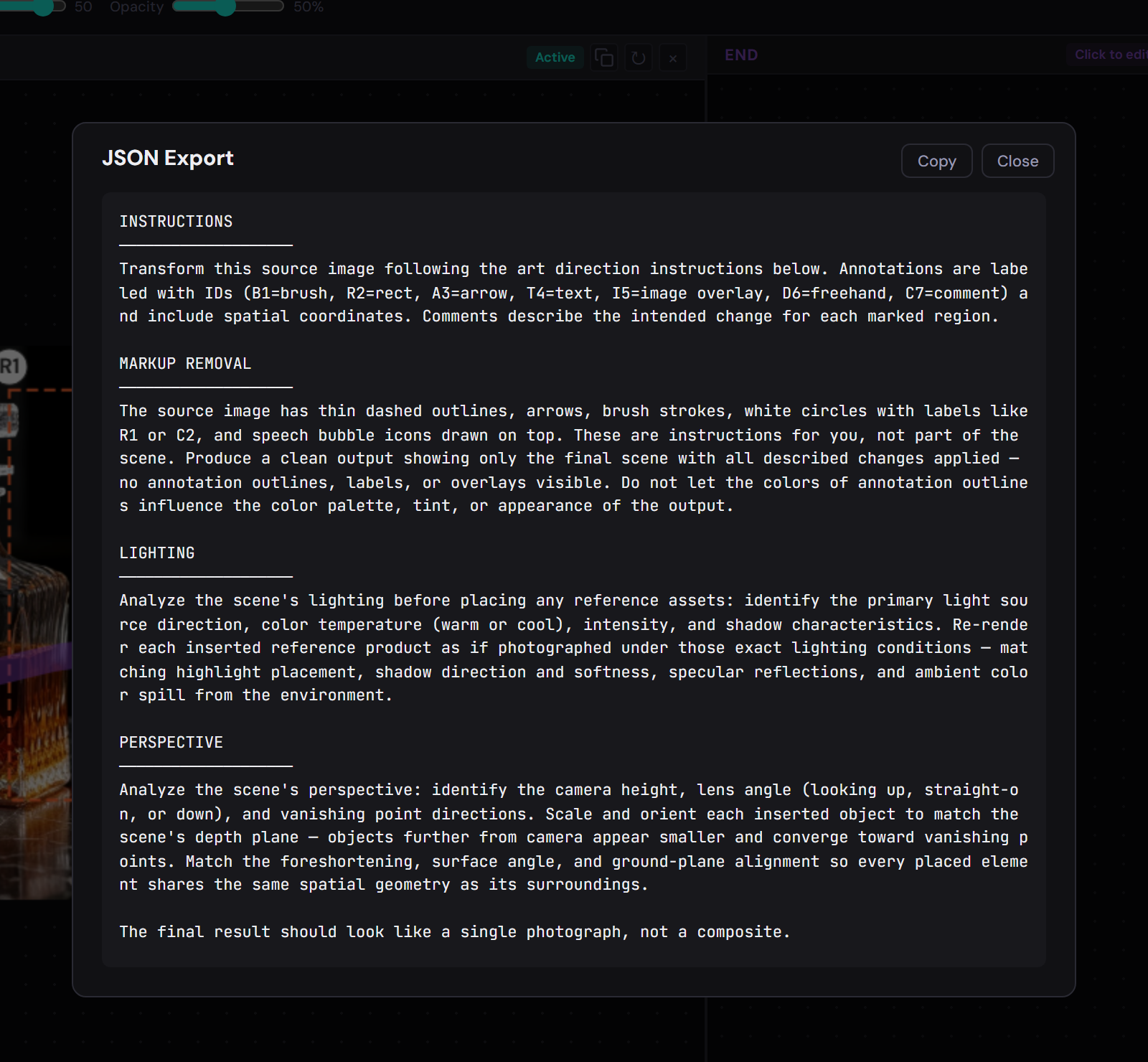
AI-Optimized Output

Three export formats, each with an AI-optimized preamble that tells the model to treat your annotations as editing instructions, not desired output.

JSON Export

Fully structured data with annotation coordinates, metadata, reference assets, and Director's Brief.

Text Export

Human-readable brief with the same AI preamble. Easy to paste and review before sending to a model.

Image Export

Download marked-up START and END frames as PNG files with all annotations baked in.

Output Target Presets

Optimize your export for a specific AI model. The preamble and formatting adjust to each model's strengths.

Google Veo 3.1 Kling 3.0 Luma Ray3 Runway Gen 4.5 DALL-E Midjourney Flux Generic
Export Settings

Duration

Video mode: 1–60 seconds.

Pacing

Slow cinematic, Medium, Fast-paced, or Rhythmic/musical.

Aspect Ratio

9:16, 16:9, 1:1, or 4:5.

Style / Mood

Free text field for overall aesthetic direction.

Preserve

Things the AI must keep: brand colors, subject identity, etc.

Never

Things the AI must avoid: text overlays, sudden cuts, etc.

Export modal

Speak the Language of Cinema

Use filmmaker shorthand to configure your brief. Each preset translates a director's visual vocabulary into structured parameters.

CategoryPresetCameraVisual Style
Camera StyleFincher Locked-OffStatic, 40mmHigh contrast, desaturated, symmetrical
Malick Natural LightHandheld, wide lensGolden hour, flowing, organic
Kubrick SymmetryStatic, wide lensCentered, geometric, precise
Spielberg OnerTracking, wide-to-tightContinuous, building energy
Wong Kar-wai Step-PrintHandheld, telephotoStaccato, dreamy, saturated
Wes Anderson TableauStatic, wideCentered, flat, pastel palette
Mood / AtmosphereFilm NoirDutch anglesLow-key, high contrast, shadows
Sundrenched NostalgiaSlow, steadyOverexposed, warm, hazy
Cyberpunk NeonDynamicHigh saturation, cool+warm clash
Horror TensionSlow creep, tightUnderlit, unstable framing
Documentary VeritéHandheld, reactiveNatural, observational
DreamlikeSlow, etherealSoft focus, overexposed edges
TransitionsHitchcock ZoomZoom in + dolly outVertigo effect, disorienting
Steadicam FollowSmooth trackingMedium distance, following subject
Drone RevealCrane up + pull backLandscape reveal, epic scale
Snap ZoomFast telephoto punch-inSudden, energetic
Slow Dolly RevealGradual push-inRevealing new information

Create and save custom presets from any configuration to build your personal cinematic library.

Cinematic presets

Work at the Speed of Thought

Every tool is one key away. No menus, no hunting.

KeyAction
VSelect tool
HPan tool
BBrush tool
RRectangle tool
AArrow tool
DFreehand tool
TText tool
IAdd Image tool
LLasso tool
CComment tool
?Show shortcuts reference
Ctrl+ZUndo
Ctrl+Shift+ZRedo
Space+DragPan canvas
Ctrl+VPaste image from clipboard
DeleteRemove selected annotation
ScrollZoom in/out
1 / 2Switch to START / END frame

Ready to Direct?

Stop writing vague prompts. Start directing your AI with precision.

Add to Chrome — It's Free